
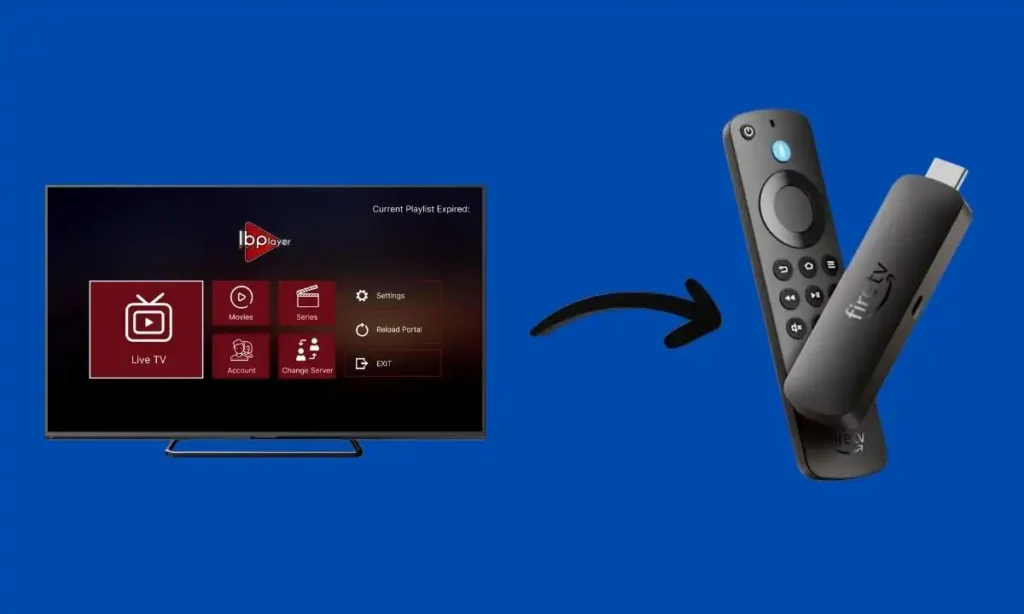
So you’ve got a Firestick.
You’ve heard about IPTV.
And now you’re trying to figure out how to install IBO Pro Player on Firestick without breaking anything.
Good news: it’s easier than it sounds.
In this guide, I’ll walk you through the entire process step-by-step — even if you’ve never installed an app outside the Amazon App Store before. This works on all Firestick models, including Firestick Lite, 4K, 4K Max, and Fire TV Cube.
By the end, you’ll know:
- How to install IBO Pro Player
- How to complete the IBO Pro Player Firestick setup
- How to add playlist to IBO Pro Player
- How to fix common issues
Let’s start with the basics.
What Is IBO Pro Player?
IBO Pro Player is an IPTV media player.
Important: It does NOT come with channels.
It’s simply a player where you upload your own IPTV playlist (usually in M3U or Xtream Codes format).
Think of it like a DVD player.
It plays content, but you bring the disc.
Most IPTV users prefer IBO Pro Player because:
- Clean interface
- Fast channel switching
- Supports M3U and Xtream Codes
- Works smoothly on Firestick
Now let’s install it.
Before You Install IBO Pro Player on Firestick
This takes 2 minutes.
Because IBO Pro Player isn’t always in the Amazon App Store, we’ll sideload it using an app called Downloader.
Step 1: Enable Developer Options
- Go to Settings
- Click My Fire TV
- Select About
- Highlight your device name and press OK 7 times
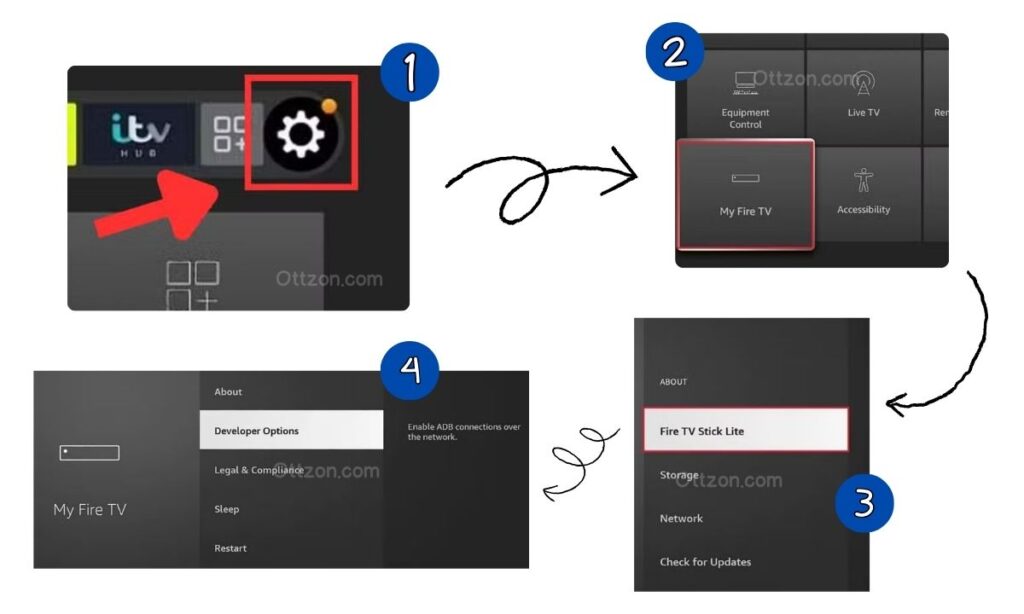
You’ll see a message: “You are now a developer.”
Now go back:
- Open Developer Options
- Turn on Apps from Unknown Sources
- Or enable Install Unknown Apps → Downloader → ON
Done.
Step 2: Install Downloader
- Go to the search icon
- Type Downloader
- Install the app by AFTVnews
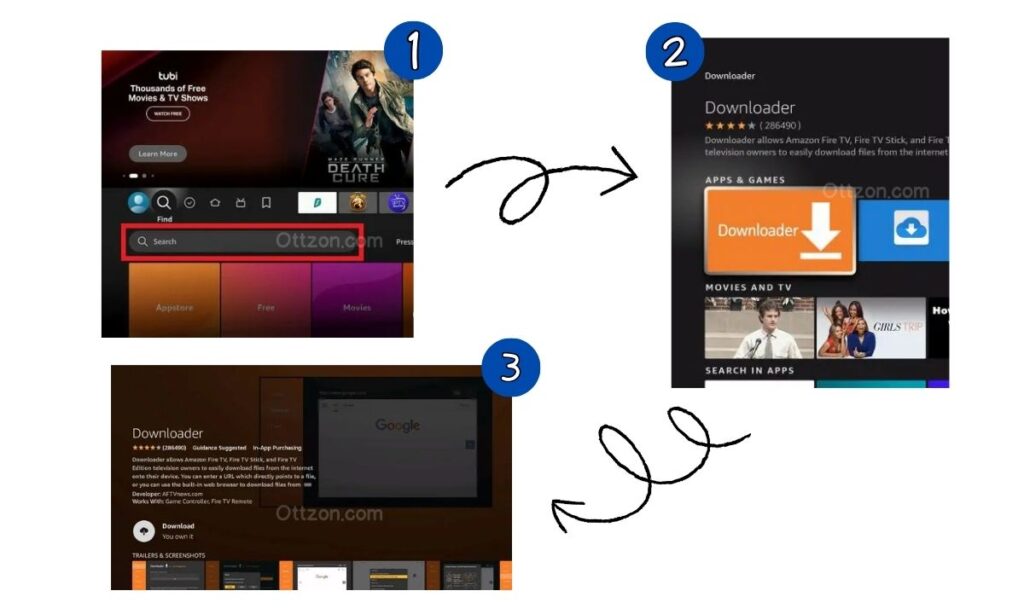
Open it. Allow permissions.
Now we’re ready.
How to Install IBO Pro Player on Firestick
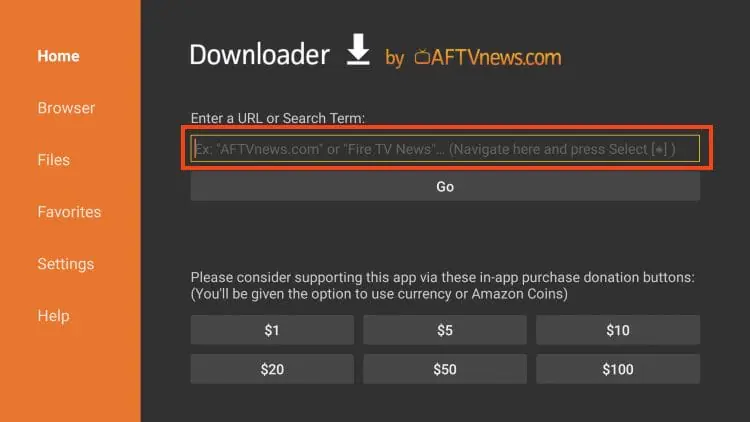
Inside Downloader:
- In the URL box, enter the Downloader code: 481220
- Click Go
- Wait for the file to download
- Click Install
- Select Done
- Delete the APK file to save storage (recommended)
Now open IBO Pro Player.
You’ll immediately see a screen showing:
- MAC Address
- Device Key
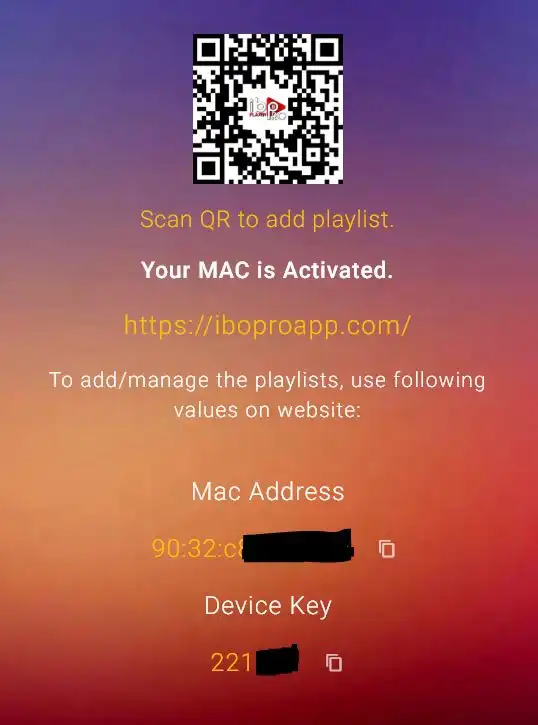
IBO Pro Player Firestick Setup (Activation Guide)
This is where many beginners get confused.
Remember: the app doesn’t include channels. You must upload your IPTV playlist.
Step 1: Go to the Activation Portal
Using your phone or computer, visit the official IBO Pro Player activation website.
Enter:
- Your MAC address
- Your Device Key
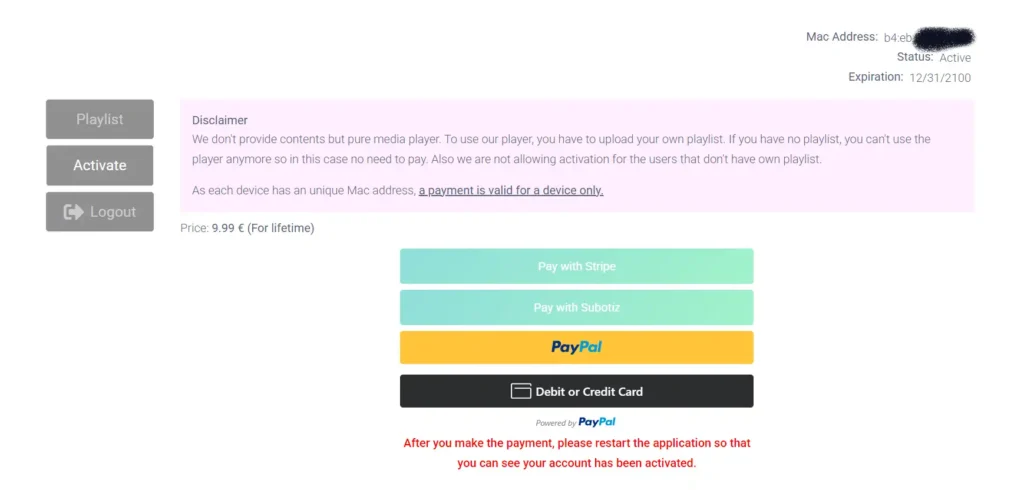
Now you’ll see options to upload your playlist.
How to Add Playlist to IBO Pro Player
There are two main methods.
Option 1: M3U URL (Most Common)
Your IPTV provider gives you a link that looks like:
http://provider.com/get.php?username=xxx&password=xxx&type=m3u
Paste this into the playlist field on the activation site.
Click Save.
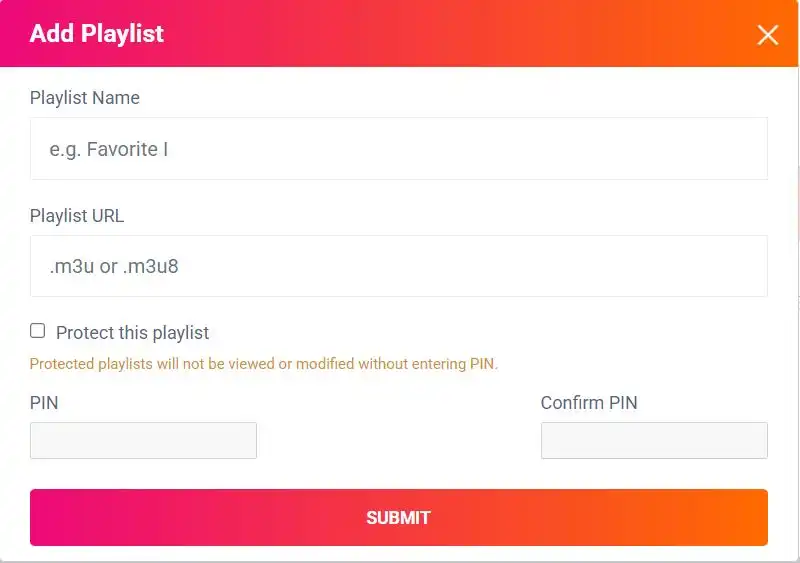
Restart the app on your Firestick.
Your channels should load.
Option 2: Xtream Codes Login
Some providers give:
- Server URL
- Username
- Password
Enter those details instead.
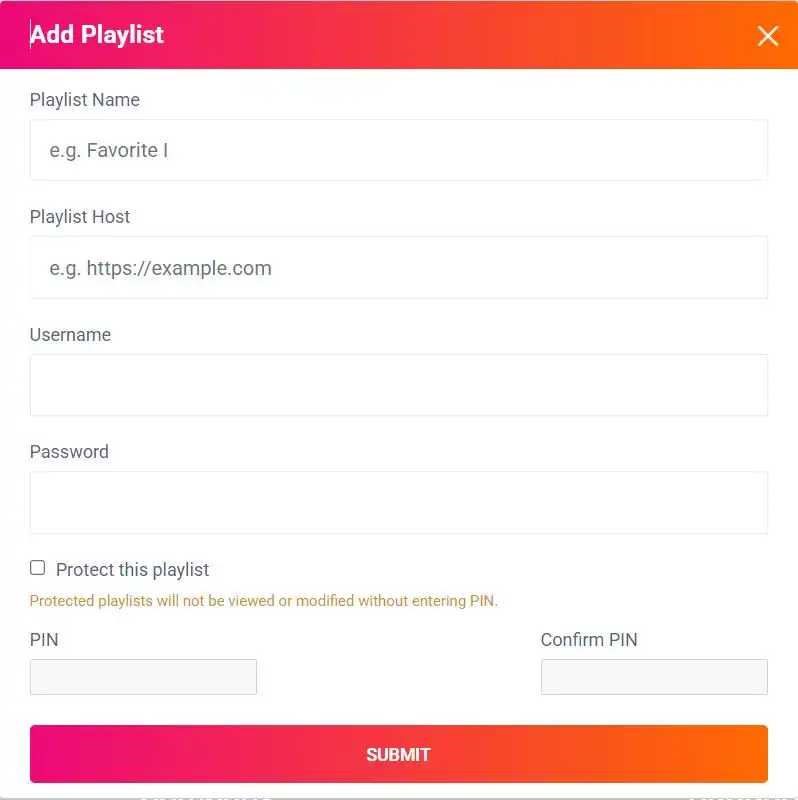
This method is often more stable and faster than M3U.
Troubleshooting Common IBO Pro Player Issue
Let’s fix common problems fast.
Developer Options Missing
Go to:
Settings → My Fire TV → About → Press OK 7 times
App Not Installing
- Make sure Downloader has permission
- Restart Firestick
- Check storage space
Playlist Not Loading
- Double-check URL
- Make sure no spaces were added
- Confirm subscription is active
- Restart app
Buffering Issues
Usually not the app — it’s the IPTV provider or internet speed.
Try:
- Restart router
- Use Ethernet adapter
- Clear app cache
How to Clear Cache
Settings → Applications → Manage Installed Applications → IBO Pro Player → Clear Cache
Why Your IPTV Provider Matters More Than the Player
IBO Pro Player is just the engine.
Your experience depends on the fuel — your IPTV provider.
If you use a low-quality service, you’ll deal with:
- Buffering
- Channels not loading
- EPG not working
- Random downtime
That’s why many users pair IBO Pro Player with a stable provider like Ottzon.
Ottzon offers:
- High uptime
- Fast servers (US, UK, CA optimized)
- Xtream Codes support
- Smooth compatibility with IBO Pro Player
If you want a setup that actually works long-term, it starts with the right provider.
👉 Explore Ottzon here: https://ottzon.com
Frequently Asked Questions
Is IBO Pro Player free?
It usually includes a free trial period. After that, a small activation fee may apply.
Does IBO Pro Player include channels?
No. It’s only a player. You must upload your own playlist.
Can I install IBO Pro Player on Firestick 4K Max?
Yes. It works on all Firestick models.
Do I need Downloader?
Yes, unless the app appears in your regional Amazon App Store.
Why is my screen stuck on MAC address?
Because no playlist has been uploaded yet.
Final Thoughts
Installing IBO Pro Player on Firestick isn’t complicated.
The process is simple:
- Enable Developer Options
- Install Downloader
- Download the APK
- Upload your playlist
- Restart the app
That’s it.
If you want the smoothest experience possible, combine IBO Pro Player with a reliable IPTV service like Ottzon so you’re not constantly troubleshooting.
Ready to complete your setup?
👉 Visit Ottzon.com and get started today.