
If you use an Amazon Firestick, you already know how powerful this small device can be. It turns any TV into a full streaming hub. But many users want more than Netflix or Prime Video. They want access to live TV channels, movies, and on-demand content through IPTV.
That is where IPTV Smarters comes in.
IPTV Smarters is one of the most popular IPTV players available today. It is simple to use, works smoothly on Firestick, and supports most IPTV subscriptions.
The good news is that installing it takes only a few minutes. In this guide, you will learn exactly how to install IPTV Smarters on Firestick, even if you have never installed an IPTV app before.
What Is IPTV Smarters and Why Firestick Users Use It
IPTV Smarters is a media player designed for streaming IPTV content. It does not provide channels itself. Instead, it allows you to log in using credentials from your IPTV provider.
Once connected, the app organizes everything into categories such as:
- Live TV
- Movies
- TV series
- Catch-up content
Firestick users like IPTV Smarters because the interface is clean and easy to navigate with a remote. It also supports multiple login formats like Xtream Codes and M3U playlists.
If you already have an IPTV subscription, IPTV Smarters makes watching content on Firestick simple.
What You Need Before Installing IPTV Smarters on Firestick
Before starting the installation process, make sure you have a few things ready.
First, you need an Amazon Firestick or Fire TV device connected to the internet.
Second, you will need the Downloader app, which allows Firestick to download apps that are not available directly in the Amazon App Store.
Finally, you will need an active IPTV subscription. IPTV Smarters is only a player, so you will need login credentials from your provider to access channels.
Step-by-Step Guide: How to Install IPTV Smarters on Firestick
Follow these steps carefully and you will have IPTV Smarters installed in just a few minutes.
Step 1: Enable Apps From Unknown Sources
Because IPTV Smarters is installed using an APK file, you first need to allow third-party apps
How to Enable Apps From Unknown Sources on Firestick
- From the Firestick home screen, go to Settings (gear icon on the right).
- Scroll and select My Fire TV.
- Click Developer Options.
- Select Install Unknown Apps.
- Choose the app you want to allow (for example Downloader).
- Turn the permission ON.
Once enabled, the selected app will be able to install APK files such as IPTV Smarters.
Important Note:
If you do not see Developer Options, you may need to unlock it first:
- Go to Settings
- Select My Fire TV
- Click About
- Select Fire TV Stick and press the Select button on your remote 7 times
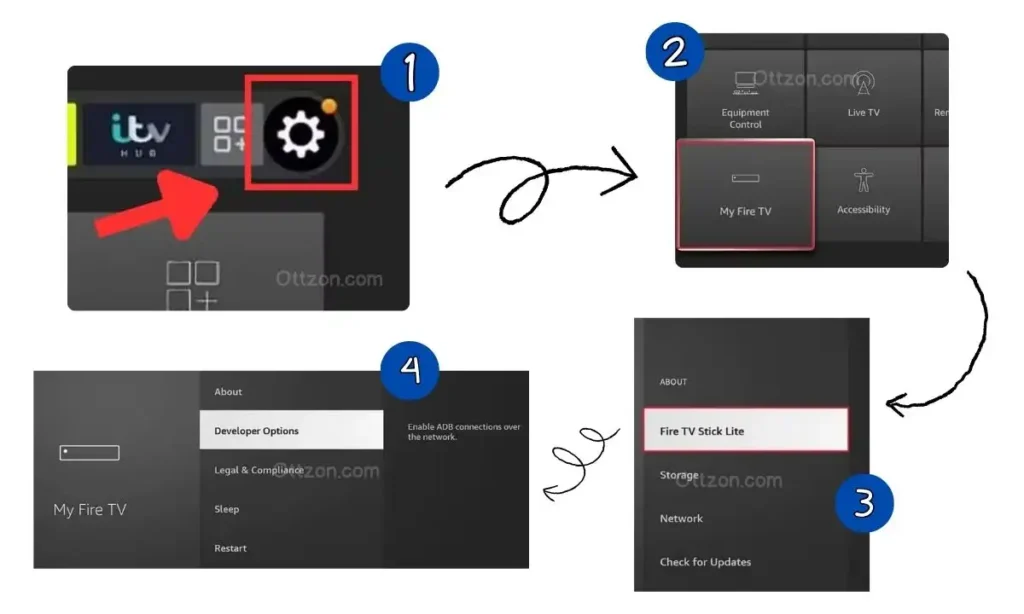
After that, Developer Options will appear in the menu.
This step is required before you can install IPTV Smarters on Firestick using Downloader.
Step 2: Install the Downloader App
Now you need the Downloader tool.
- From the Firestick home screen, go to Search.
- Type Downloader.
- Select the Downloader app from the Amazon App Store.
- Click Download and install it.
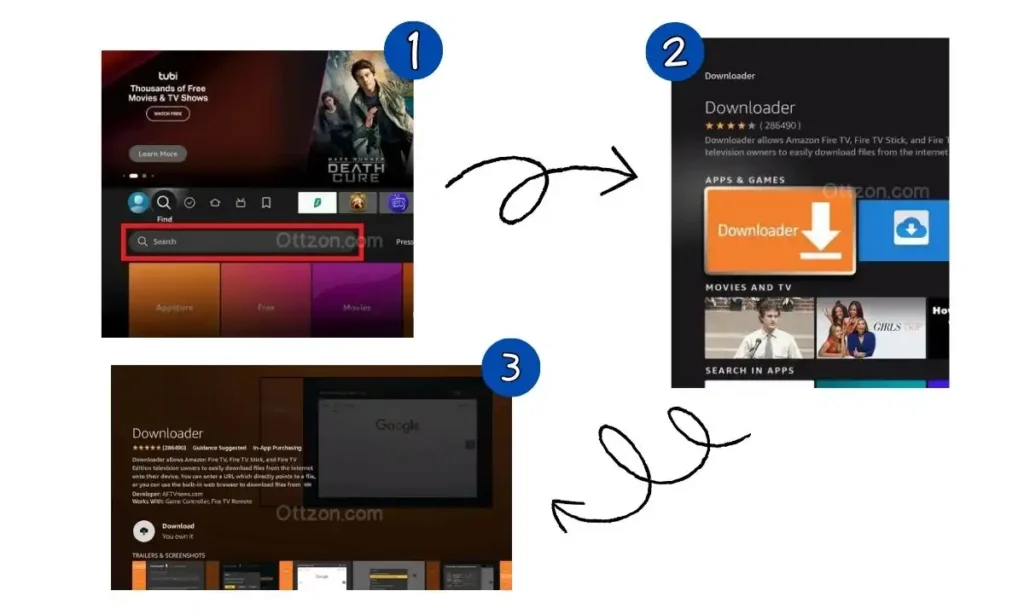
Once installed, open the app.
Step 3: Download IPTV Smarters on Firestick
Inside the Downloader app:
- Enter the IPTV Smarters downloader code “5336197”.
- Press Go.
- Wait for the APK file to download.
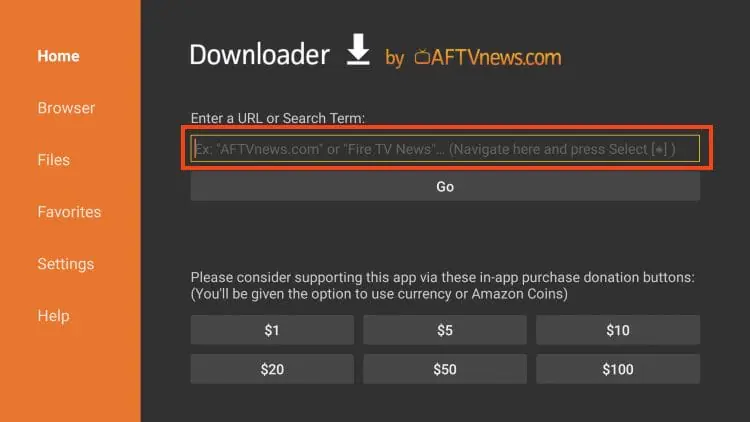
The file will appear automatically once the download is complete.
Step 4: Install IPTV Smarters
After downloading the file:
- Click Install.
- Wait for the installation to finish.
- Select Open to launch the app.
That is it. You have now completed the process of installing IPTV Smarters on Firestick.
How to Set Up IPTV Smarters on Firestick
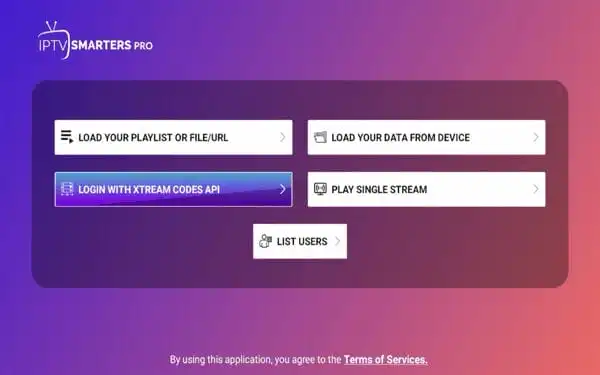
Once the app opens, you will need to log in with your IPTV provider.
Most users choose Login with Xtream Codes API.
Simply enter:
- Username
- Password
- Server URL
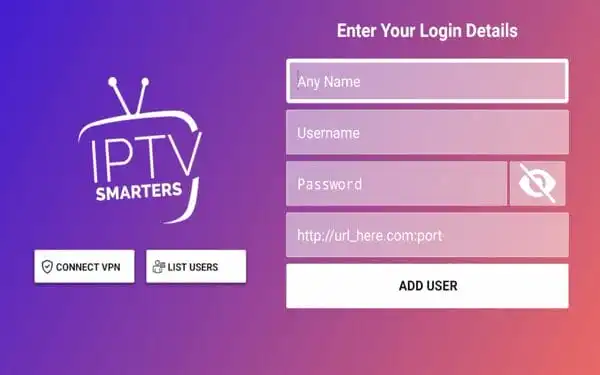
After logging in, the app will automatically load your channels, movies, and series.
If your provider gave you an M3U playlist, you can also upload it directly inside the app.
If you are looking for a reliable IPTV service for Firestick, you can explore Ottzon’s IPTV plans, designed to work smoothly with IPTV Smarters and other Firestick apps
Ottzon provides IPTV subscriptions designed to work smoothly with IPTV Smarters and Firestick devices.
Common IPTV Smarters Problems on Firestick
Sometimes users run into small issues during setup. Here are a few common ones.
IPTV Smarters Failed to Install
Make sure Apps from Unknown Sources is enabled in your Firestick settings.
Login Failed or Authorization Error
Double-check the username, password, and server URL provided by your IPTV service.
If you encounter the failed to authorize error, you can follow this guide: IPTV Smarters Failed to Authorize? Here’s How to Fix It
Buffering or Slow Channels
Buffering usually comes from slow internet speeds or overloaded IPTV servers. Restarting the app or switching networks often fixes the issue.
Final Thoughts
Learning how to install IPTV Smarters on Firestick is easier than most people expect. The entire process takes only a few minutes and requires just one extra app called Downloader.
Once installed, IPTV Smarters turns your Firestick into a powerful IPTV streaming device where you can watch live TV, movies, and series from your IPTV provider.
If you want the best experience, make sure you use a reliable IPTV service that works well with IPTV Smarters.
You can explore IPTV subscription options at Ottzon.
FAQ
Is IPTV Smarters free on Firestick?
Yes. The IPTV Smarters app itself is free to install. However, you need an IPTV subscription to access content.
Why can’t I download IPTV Smarters directly from the App Store?
In many regions, IPTV Smarters must be installed using an APK file through the Downloader app.
Do I need an IPTV subscription to use IPTV Smarters?
Yes. IPTV Smarters is only a player. You must connect it to an IPTV service using login credentials.
Why does IPTV Smarters buffer on Firestick?
Buffering usually happens due to slow internet speeds, server issues from your IPTV provider, or background apps running on Firestick.