
If you use IPTV on a Firestick, one of the first things you need is a reliable player. Some apps are difficult to navigate with a remote. Others struggle to load large playlists.
That’s where GSE Smart IPTV comes in.
The GSE IPTV player is widely used because it supports multiple playlist formats, works smoothly on streaming devices, and offers a clean interface designed for TV screens.
The only challenge is that the app isn’t available in the Amazon App Store. To use it on Firestick, you need to install it manually.
In this guide, you’ll learn how to install GSE Smart IPTV on Firestick using the Downloader code method, how to add your IPTV credentials, and how to fix common issues if something doesn’t work.
What Is GSE Smart IPTV?
GSE Smart IPTV is a media player designed to stream IPTV playlists on devices like Firestick, Android TV, and smartphones.
Important point: the app does not provide channels. It simply organizes and plays streams provided by an IPTV subscription.
The player supports several formats, including:
- M3U playlists
- Xtream Codes API
- JSON playlists
Once connected to an IPTV service, the app allows you to watch live channels, movies, and series directly from your Firestick.
Many users prefer the GSE Smart IPTV APK because it is lightweight, customizable, and compatible with most IPTV providers.
What You Need Before Installing GSE Smart IPTV
Before you install GSE IPTV on Firestick, make sure you have a few things ready.
You’ll need:
- Amazon Firestick or Fire TV device
- A stable internet connection
- The Downloader app
- IPTV credentials (M3U or Xtream login)
If you already have an IPTV subscription, keep your login details nearby. You’ll use them shortly after installation.
Enable Apps From Unknown Sources on Firestick
Firestick blocks third-party apps by default. Since GSE Smart IPTV isn’t in the Amazon store, you must allow installations from unknown sources.
Follow these steps.
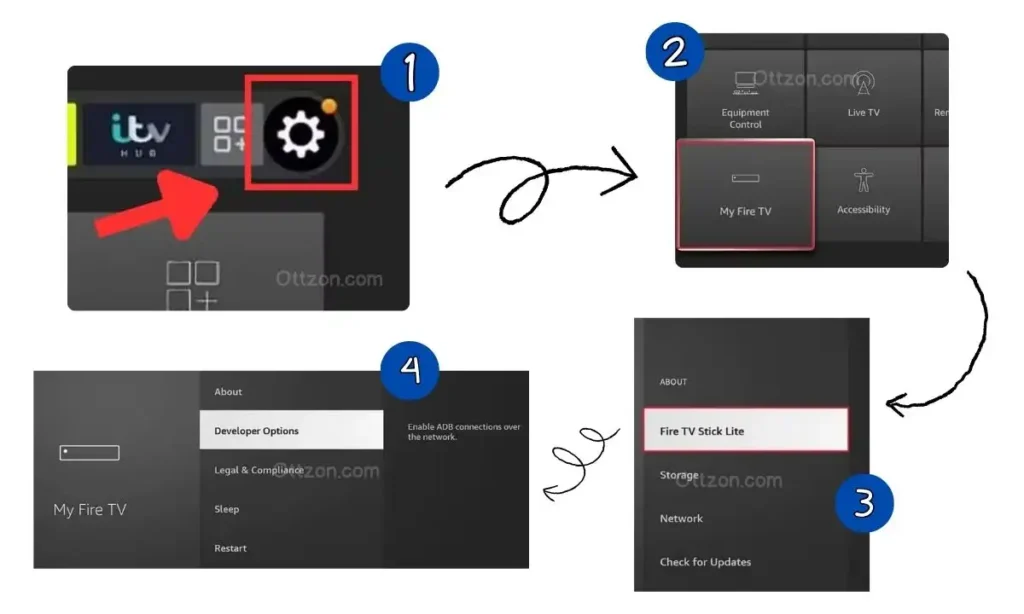
- Go to the Firestick Home Screen
- Open Settings
- Select My Fire TV
- Click Developer Options
- Turn on Apps from Unknown Sources
This allows the Downloader app to install APK files on your device.
Install the Downloader App
The Downloader app makes it easy to download apps that aren’t available in the Amazon store.
To install it:
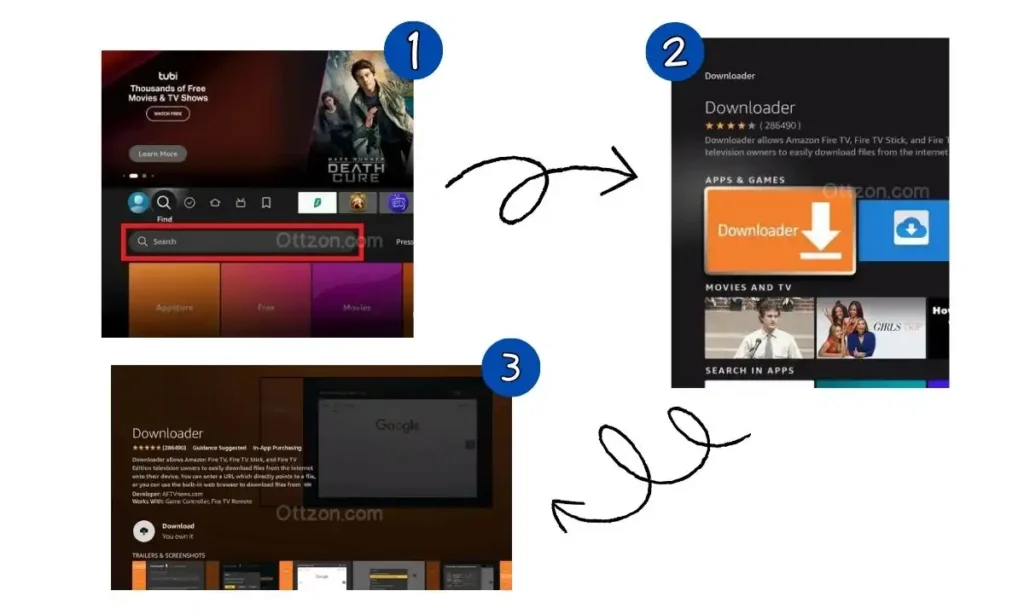
- Go to the Firestick home screen
- Select Find
- Click Search
- Type Downloader
- Install the app developed by AFTVnews
Once installed, open the app and allow any permissions it requests.
How to Install GSE Smart IPTV on Firestick Using Downloader Code
Now you’re ready to install the GSE Smart IPTV APK.
Follow these steps.
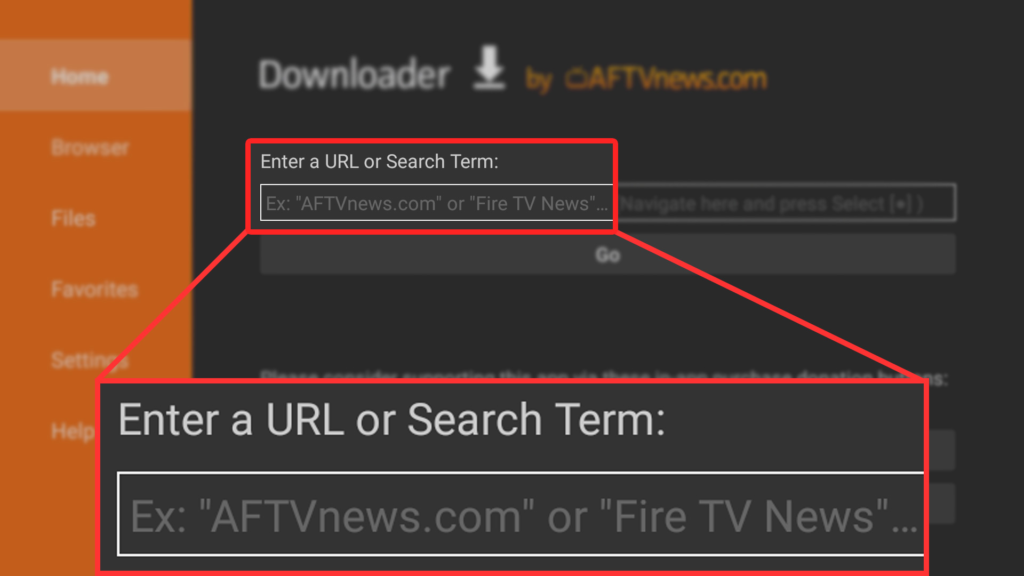
- Open the Downloader app
- Click inside the URL field
- Enter the Downloader code “354615” for GSE Smart IPTV
- Click Go
- Wait for the APK file to download
- When the installation screen appears, click Install
- After installation, click Done
You can delete the APK file to save storage space.
The GSE IPTV player is now installed on your Firestick.
How to Add IPTV Credentials in GSE Smart IPTV
After opening the app for the first time, you’ll need to connect your IPTV service.
Add an M3U Playlist
- Launch GSE Smart IPTV
- Open the menu
- Select Remote Playlists
- Click the + icon
- Choose Add M3U URL
- Enter a playlist name
- Paste your M3U playlist URL
- Save the playlist
Within a few seconds, the channels should appear.
Add Xtream Codes Login
Many IPTV services use Xtream Codes.
To add it:
- Open the app menu
- Select Xtream Codes API
- Click Add New Account
- Enter your server URL, username, and password
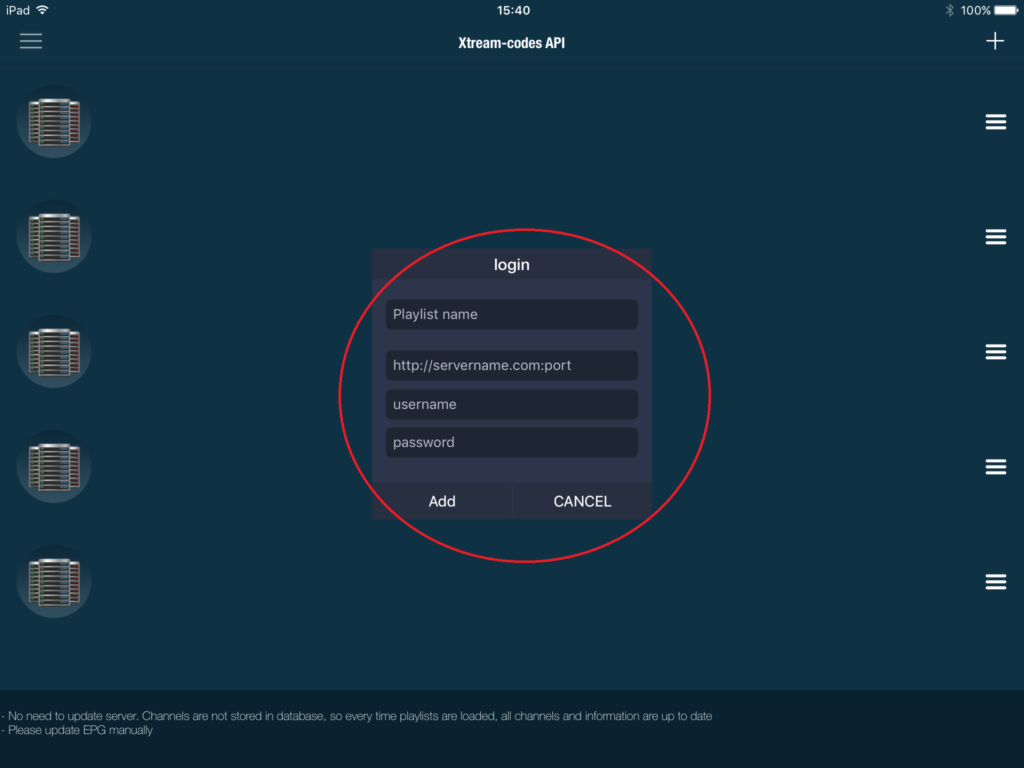
Once saved, the app will load your live channels and VOD library.
If you’re looking for a stable IPTV service that works smoothly with players like GSE Smart IPTV, many users choose Ottzon, which is optimized for Firestick streaming.
Troubleshooting Common GSE Smart IPTV Issues
Sometimes the installation works perfectly but the streams don’t load. Here are the most common fixes.
App Not Installing
Check that Apps from Unknown Sources is enabled in Firestick settings.
Also confirm that the Downloader code was entered correctly.
Playlist Not Loading
If you add a playlist and nothing appears, the issue is usually with the IPTV credentials.
Check for:
- Incorrect username or password
- Expired subscription
- Incorrect server URL
Even one missing character can stop the playlist from loading.
Buffering Issues
Buffering can happen for several reasons.
Try these quick fixes:
- Restart your Firestick
- Restart your router
- Clear the app cache
- Close unused apps running in the background
A wired Ethernet adapter can also improve streaming stability.
Tips for a Better IPTV Streaming Experience
Small changes can make a big difference when streaming IPTV.
For example, if your channels freeze during peak hours, switching video decoding settings in the player can help. Many IPTV users also reboot their Firestick once a week to keep the system running smoothly.
Another tip is to use a reliable IPTV provider with stable servers.
Conclusion
Learning how to install GSE Smart IPTV on Firestick is simple once you understand the process.
The steps are straightforward:
Enable unknown sources, install Downloader, download the GSE Smart IPTV APK, and add your IPTV credentials.
Within a few minutes, your Firestick can become a powerful IPTV streaming device.
If you want a reliable IPTV subscription that works perfectly with the GSE IPTV player, you can explore the available plans at ottzon.com and see why many Firestick users choose Ottzon.
FAQ
Is GSE Smart IPTV free?
Yes, the app has a free version. A paid version is also available with additional features and fewer ads.
Is GSE Smart IPTV available in the Amazon App Store?
No. That’s why you must install the GSE Smart IPTV APK manually using Downloader.
Do I need an IPTV subscription to use the app?
Yes. The GSE IPTV player only plays streams from IPTV providers.
Does GSE Smart IPTV work on all Firestick devices?
Yes. It works on Firestick Lite, Firestick 4K, Firestick 4K Max, and Fire TV Cube.
What login methods does GSE Smart IPTV support?
Most IPTV providers connect using M3U playlists or Xtream Codes API, both supported by the app.