
Many IPTV users run into the same situation. You have a Firestick. You have an IPTV subscription. But the provider asks you to connect using a portal or MAG box system.
That’s where Smart STB becomes useful.
The Smart STB IPTV app turns your Firestick into a virtual set-top box. Instead of buying extra hardware, the app mimics a traditional IPTV receiver and connects directly to your provider’s portal.
In this guide, you’ll learn how to install Smart STB on Firestick, how to activate it, and how to complete the Smart STB portal setup so your channels load correctly.
What Is Smart STB?
Smart STB is an IPTV application that emulates a MAG set-top box on devices like Firestick and Android TV.
In simple terms, it makes your streaming device behave like a dedicated IPTV receiver.
Once connected to an IPTV portal, the app allows you to access:
- Live TV channels
- Video on demand
- IPTV channel groups
- Electronic program guides
Important detail: the Smart STB IPTV app does not provide channels. It simply connects to the IPTV service you already have.
Many IPTV providers use portal systems, which is why Smart STB Firestick setup is common among IPTV users.
What You Need Before Installing Smart STB
Before installing the Smart STB Firestick app, make sure you have a few things ready.
You’ll need:
- Amazon Firestick or Fire TV device
- Stable internet connection
- IPTV portal URL from your provider
- IPTV account activation
Your IPTV provider will also need your virtual MAC address later in the setup process.
Method 1: Install Smart STB from the Amazon App Store
The easiest way to install Smart STB is directly through the Amazon App Store.
Follow these steps.
- Turn on your Firestick and go to the home screen
- Select Find
- Click Search
- Type Smart STB
- Select the Smart STB IPTV app
- Click Download or Get
After installation, the app will appear in your Firestick apps list.
This is the fastest way to complete Smart STB setup on Firestick.
Method 2: Sideload Smart STB Using Downloader Code
Some users prefer installing apps manually. You can also sideload the Smart STB Firestick app using Downloader.
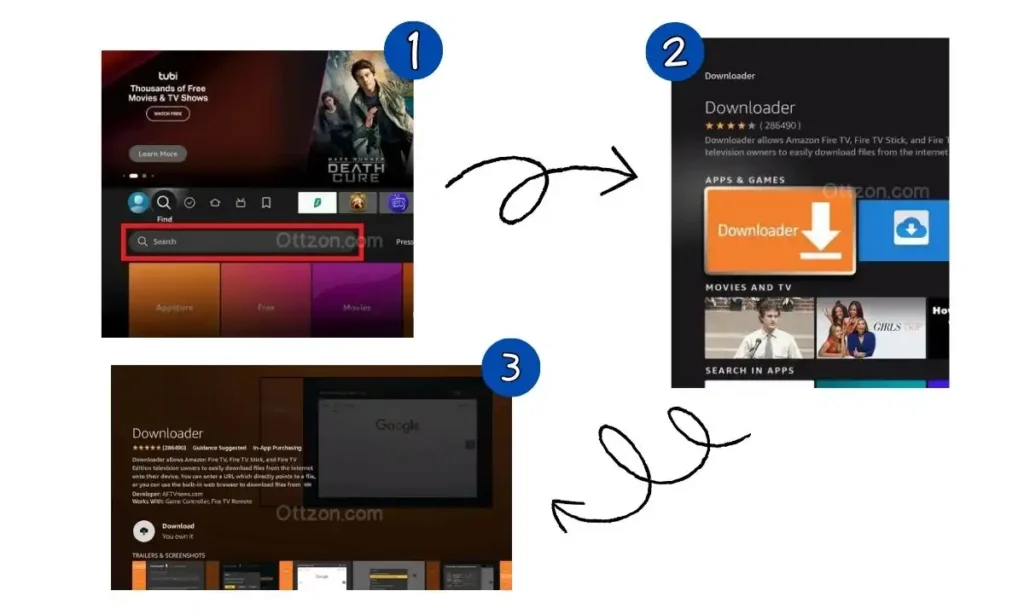
First install the Downloader app.
- Go to Find on the Firestick home screen
- Search for Downloader
- Install the app created by AFTVnews
Now install Smart STB.
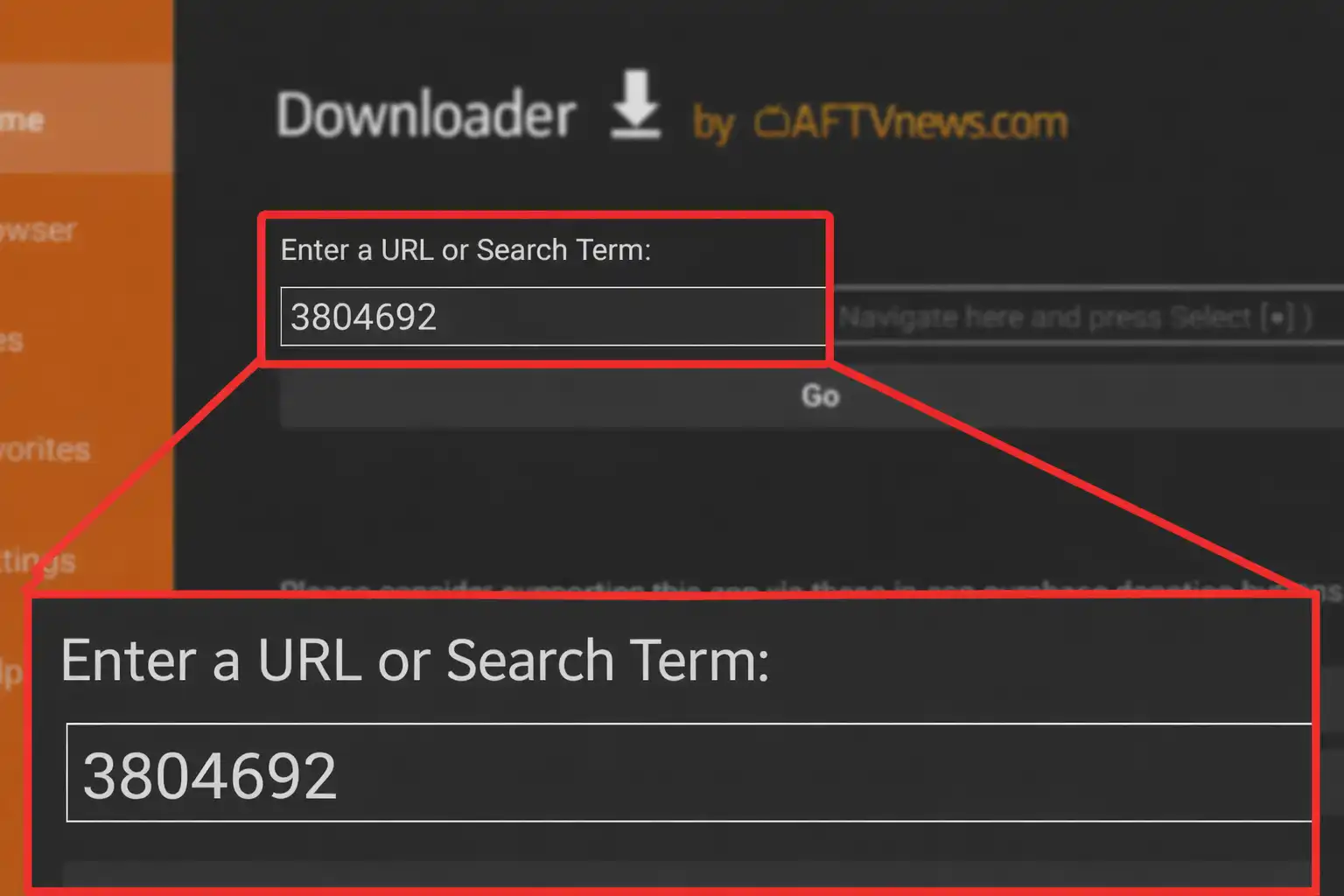
- Open the Downloader app
- Click inside the URL field
- Enter the Downloader code: 3804692
- Click Go
- Download the Smart STB APK
- Click Install
Once installed, the Smart STB IPTV app will appear in your apps list.
How to Find the Virtual MAC Address in Smart STB
When you open Smart STB for the first time, the app generates a virtual MAC address.
You can find it inside the app settings.
Steps:
- Open Smart STB
- Go to Settings
- Select Device Info
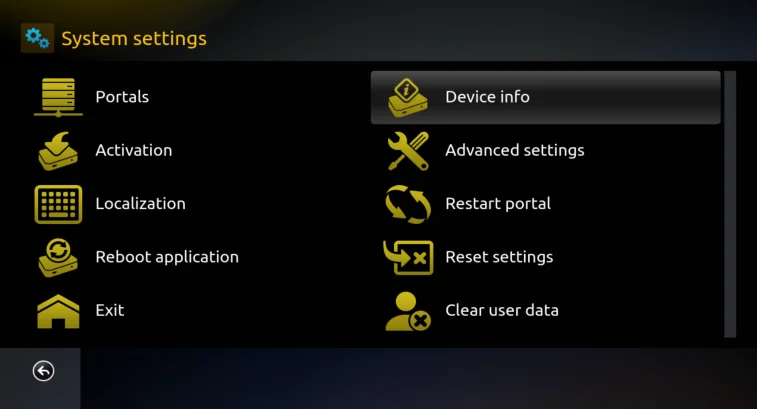
You will see your Virtual MAC Address.
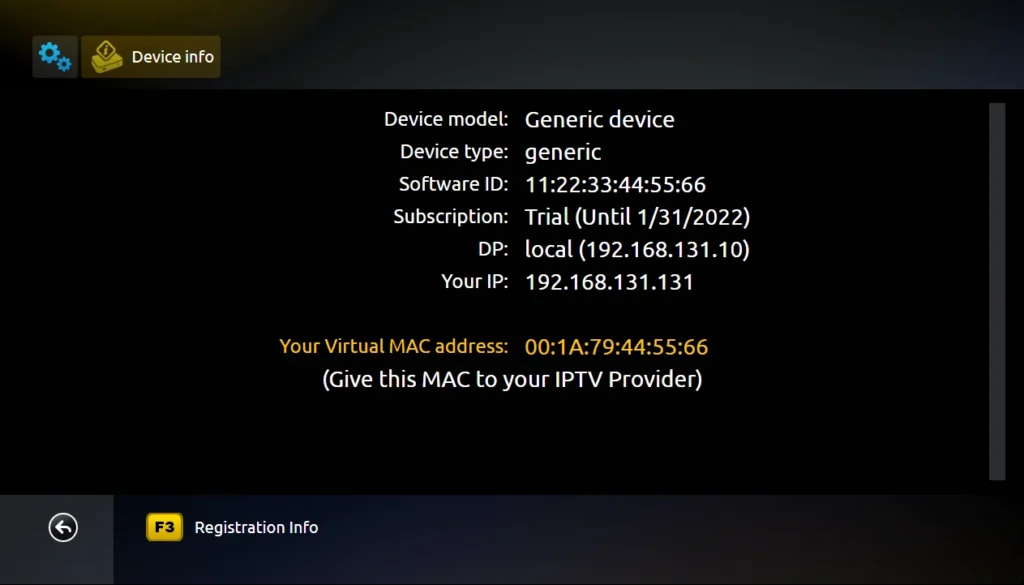
This number is important because your IPTV provider uses it to activate your device.
For example, when activating IPTV services like Ottzon, you simply provide the MAC address and the provider links your device to their portal.
How to Add IPTV Portal URL in Smart STB
After your MAC address is activated, the next step is the Smart STB portal setup.
Follow these steps.
- Open Smart STB settings
- Select Portal Settings
- Enter the Portal URL provided by your IPTV provider
- Save the settings
- Restart the app
Once the app reloads, your IPTV channels should appear.
Troubleshooting Common Smart STB Issues
Sometimes users install the app but encounter small issues.
Smart STB Not Opening
Restart your Firestick and reopen the app. Also make sure the app is fully updated.
Portal Not Loading
Check the portal URL carefully. One incorrect character will prevent the portal from loading.
MAC Address Not Activated
Contact your IPTV provider and confirm that your MAC address has been registered.
Buffering Issues
Buffering is usually related to internet speed or server load.
Try these quick fixes:
- Restart your Firestick
- Restart your router
- Close background apps
- Use Ethernet if possible
Tips for Better IPTV Streaming on Firestick
Small improvements can make IPTV streaming smoother.
For example, many IPTV users restart their Firestick once a week to clear temporary memory.
Another helpful tip is using a stable IPTV provider with optimized servers.
A reliable IPTV service paired with the Smart STB IPTV app can significantly reduce buffering and improve channel switching speed.
Conclusion
Learning how to install Smart STB on Firestick is straightforward once you know the steps.
You can install the app directly from the Amazon App Store or sideload it using Downloader code 3804692.
After installation, the key steps are:
- Find your virtual MAC address
- Activate the device with your IPTV provider
- Add the portal URL
Once everything is configured, your Firestick becomes a fully functional IPTV set-top box.
If you are looking for a reliable IPTV service that works smoothly with Smart STB, you can explore the available subscriptions at ottzon.com and see why many IPTV users choose Ottzon.
FAQ
Is Smart STB free?
Smart STB usually includes a short free trial. After that, a paid license may be required.
Does Smart STB provide TV channels?
No. The Smart STB IPTV app only connects to IPTV providers.
Can Smart STB run on Firestick?
Yes. Smart STB is compatible with Firestick, Android TV, and several smart TV platforms.
What is the Smart STB portal URL?
The portal URL is provided by your IPTV service and allows the app to connect to the IPTV server.
Why does my Smart STB portal not load?
This usually happens if the portal URL is incorrect or your MAC address has not been activated by the IPTV provider.