
If you’re looking to install IBO Pro Player on Android, you’re in the right place.
Whether you’re using an Android phone, tablet, Android TV, Google TV, Nvidia Shield, or a TV box like Mi Box — the process is straightforward once you know the steps.
In this guide, you’ll learn:
- How to install IBO Pro Player on Android
- How to complete the IBO Pro Player Android setup
- How to add playlist to IBO Pro Player Android
- How to fix common issues
Let’s start with the basics.
What Is IBO Pro Player?
IBO Pro Player is an IPTV media player.
Important: It does not include channels or content.
It works like a streaming engine. You upload your IPTV playlist (M3U link or Xtream Codes), and the app organizes and plays your content.
Why Android users like it:
- Clean interface
- Fast loading
- Works on phones and TVs
- Supports M3U & Xtream Codes
Now let’s install it.
Method 1: Install IBO Pro Player on Android via Google Play
This is the easiest method.
Step 1:
Open the Google Play Store
Step 2:
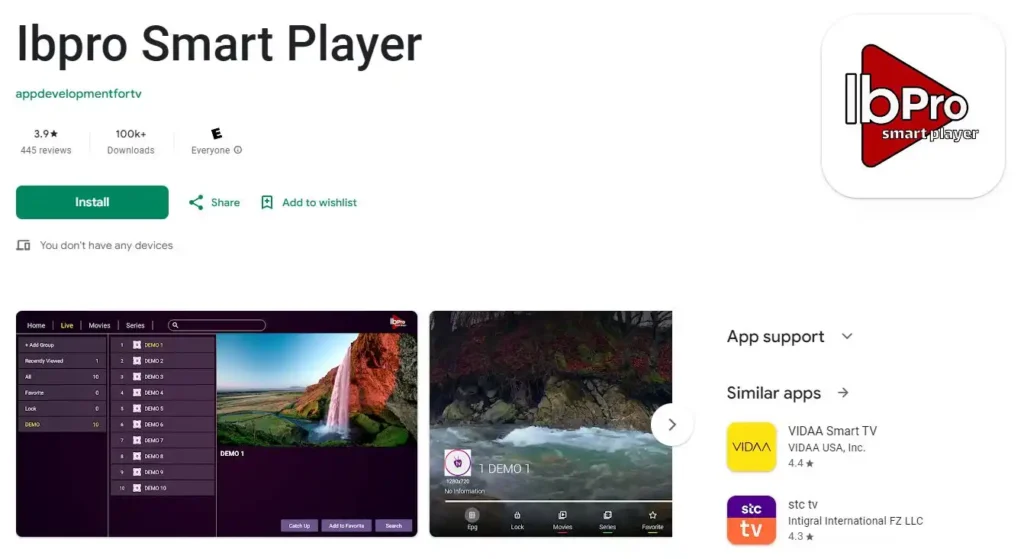
Search for IBO Pro Player
Step 3:
Tap Install
That’s it.
Open the app after installation. You’ll see:
- MAC Address
- Device Key
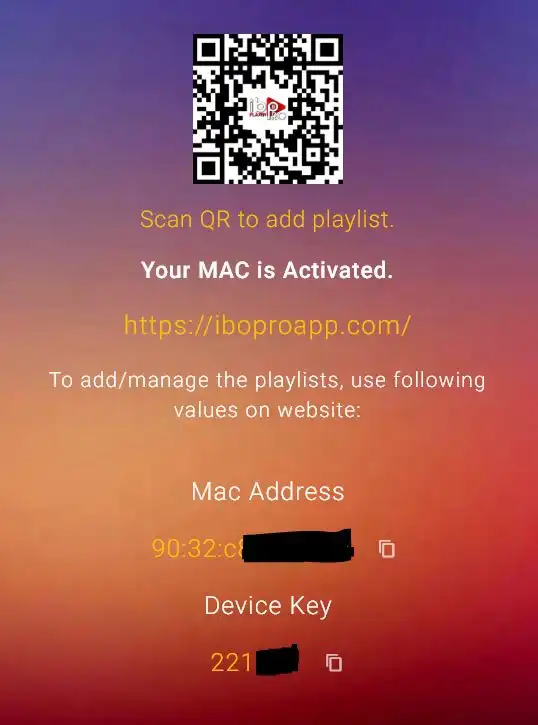
Write these down. You’ll need them for activation.
This method works for:
- Android smartphones
- Tablets
- Some Android TV devices
If you can’t find it in the Play Store, use the APK method below.
Method 2: IBO Pro Player APK Download (Manual Install)
If your device doesn’t show it in Play Store, you can manually install the APK.
This works for:
- Android TV
- Google TV
- Nvidia Shield
- Mi Box
- Most Android TV boxes
Step 1: Enable Unknown Sources
On Android Phone:
Settings → Security → Install Unknown Apps → Allow browser access
On Android TV:
Settings → Apps → Security & Restrictions → Unknown Sources → Enable
Menus may vary slightly depending on device.
Step 2: Download the IBO Pro Player APK
Using your browser, visit the official IBO Pro Player website and download the Android APK.
Avoid downloading from random third-party sites.
Step 3: Install the APK
- Open the downloaded file
- Tap Install
- Open the app
Again, you’ll see your MAC Address and Device Key.
Now it’s time for setup.
IBO Pro Player Android Setup (Activation Guide)
After installing IBO Pro Player on Android, you must upload your playlist.
Without this step, the app will only show the MAC screen.
Step 1: Visit the Activation Portal
Using your phone or computer:
- Go to the official IBO Pro Player activation site
- Enter:
- MAC Address
- Device Key
Once logged in, you can add your playlist.
How to Add Playlist to IBO Pro Player Android
There are two main ways.
Option 1: Add M3U URL
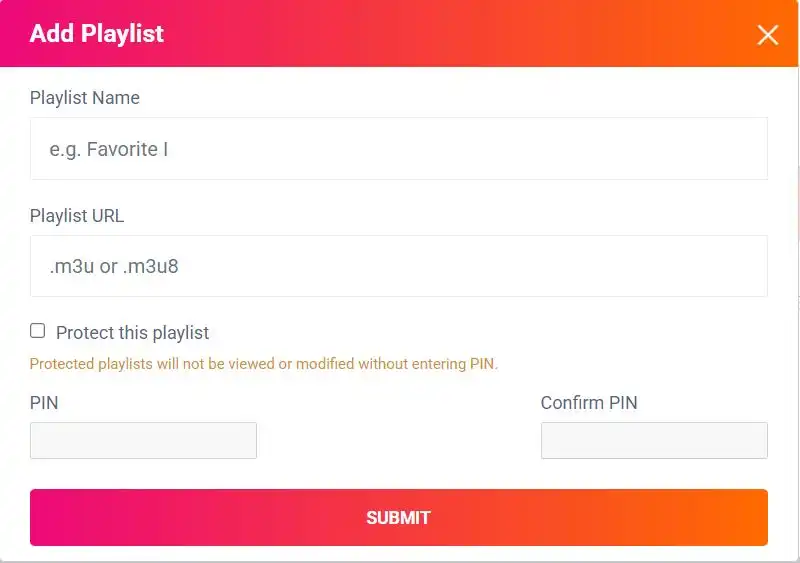
Your IPTV provider gives you a link that looks like:
http://provider.com/get.php?username=xxx&password=xxx&type=m3u
Paste it into the playlist field.
Click Save.
Restart the app.
Your channels should load.
Option 2: Use Xtream Codes (Recommended)
Your provider may give:
- Server URL
- Username
- Password
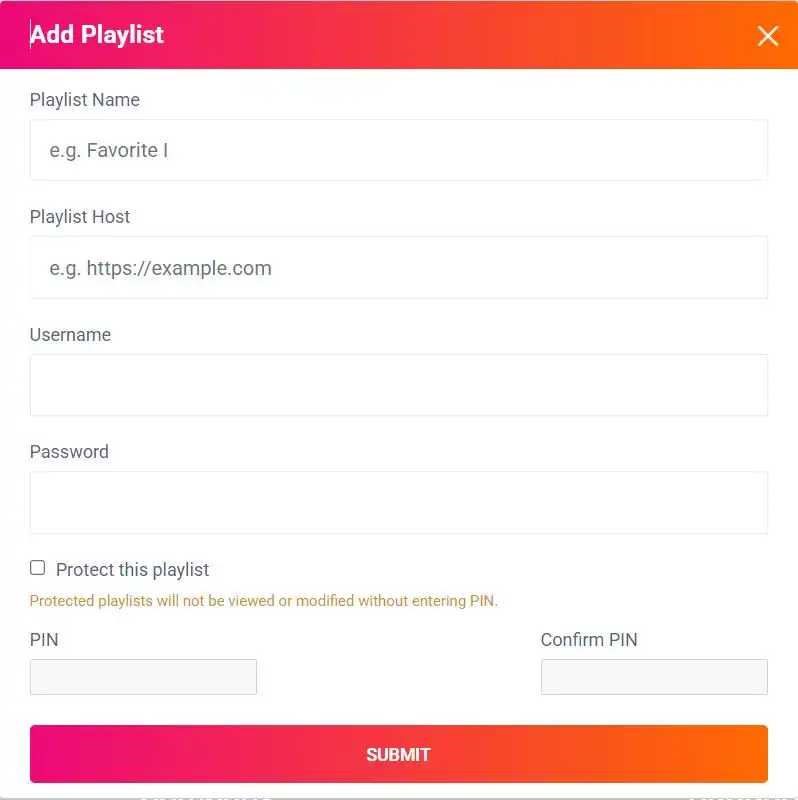
Enter those details instead.
Why this method is better:
- Faster loading
- Better EPG support
- More stable connection
If available, always use Xtream Codes.
Troubleshooting IBO Pro Player on Android
Let’s fix common issues.
App Not Installing
- Make sure Unknown Sources is enabled
- Re-download APK
- Restart device
Stuck on MAC Address Screen
You haven’t uploaded a playlist yet. Complete activation first.
Playlist Not Loading
- Double-check URL
- Remove extra spaces
- Confirm subscription is active
- Restart the app
Buffering Issues
Buffering usually depends on:
- Internet speed (25 Mbps recommended for HD, 50+ Mbps for 4K)
- IPTV server quality
- Device performance
Performance Tips for Android TV Boxes
If you’re using a budget Android box:
- Clear cache regularly
- Close background apps
- Use wired Ethernet instead of WiFi
- Restart device weekly
Small tweaks make a big difference.
Why Your IPTV Provider Matters
IBO Pro Player is only the player.
Streaming quality depends on your IPTV service.
A weak provider causes:
- Buffering
- Channels not loading
- EPG errors
- Server downtime
That’s why many users pair IBO Pro Player on Android with a stable IPTV service like Ottzon.
Ottzon offers:
- Optimized US, UK, CA servers
- Xtream Codes compatibility
- High uptime
- Smooth performance with IBO Pro Player
If you want fewer headaches and more streaming:
👉 Visit https://ottzon.com to get started.
FAQ – IBO Pro Player Android
Is IBO Pro Player free?
It may offer a trial period. Activation may require a small fee afterward.
Does it include channels?
No. You must upload your own IPTV playlist.
Can I use IBO Pro Player on Android TV?
Yes. It works on Android TV, Google TV, and TV boxes.
Which method is better: Play Store or APK?
Play Store is simpler. APK is useful if the app isn’t listed.
Why is my playlist buffering?
Usually internet speed or IPTV provider quality.
Final Thoughts
Installing IBO Pro Player on Android is simple:
- Install via Play Store or APK
- Open app and get MAC address
- Activate
- Add playlist
- Restart
That’s it.
Once properly set up, it becomes one of the most reliable IPTV players for Android devices.
If you want the best experience possible, pair it with a strong IPTV provider like Ottzon.